Onboarding optimisation
Planable · Lead Product Designer · Jun–Dec 2024
More people were signing up for a trial, but fewer finished onboarding. We cut the setup down to the basics, made the guided tour optional and shortened the checklist to three steps. More people got started, and retention doubled.
- x2
- Two-week retention
- +55.4%
- Onboarding rate
- +241%
- Checklist completion
- -30%
- Time to paid
Problem
Marketing started to widen our go-to-market, and far more prospects signed up for a trial. But the self-serve onboarding rate dropped. More people came in, and fewer got started.
I dug into the data. Four things stood out:
- Mobile users converted much worse than desktop users.
- The guided tour, placed upfront, pushed people away instead of helping them find their way.
- Workspace setup was almost always skipped.
- Main features were less discoverable than we assumed.
What we tried first
Setup flow
The old flow told us little about prospects. Its weakest steps were the tour and workspace setup, and we needed more ways to help people after setup.
Tap a number to read the note.
Tap a number to read the note.
Mobile
People open Planable on their phone in their downtime. Their intent is lower, so small friction makes them leave. I adapted the screens, simplified the steps and made elements behave like native ones.
Let’s create your company
What describes you best?
Choose the most accurate role.
Size of your organization
Select the most accurate.
What are your top goals?
Select up to 3 options.
Where did you hear about Planable?
Add channels
Connect multiple pages or channels.
End of the demo
The real flow carries on from here.

Switch
& enhance
Get the most out of Planable
For the best experience, switch to a larger screen or download our mobile app.
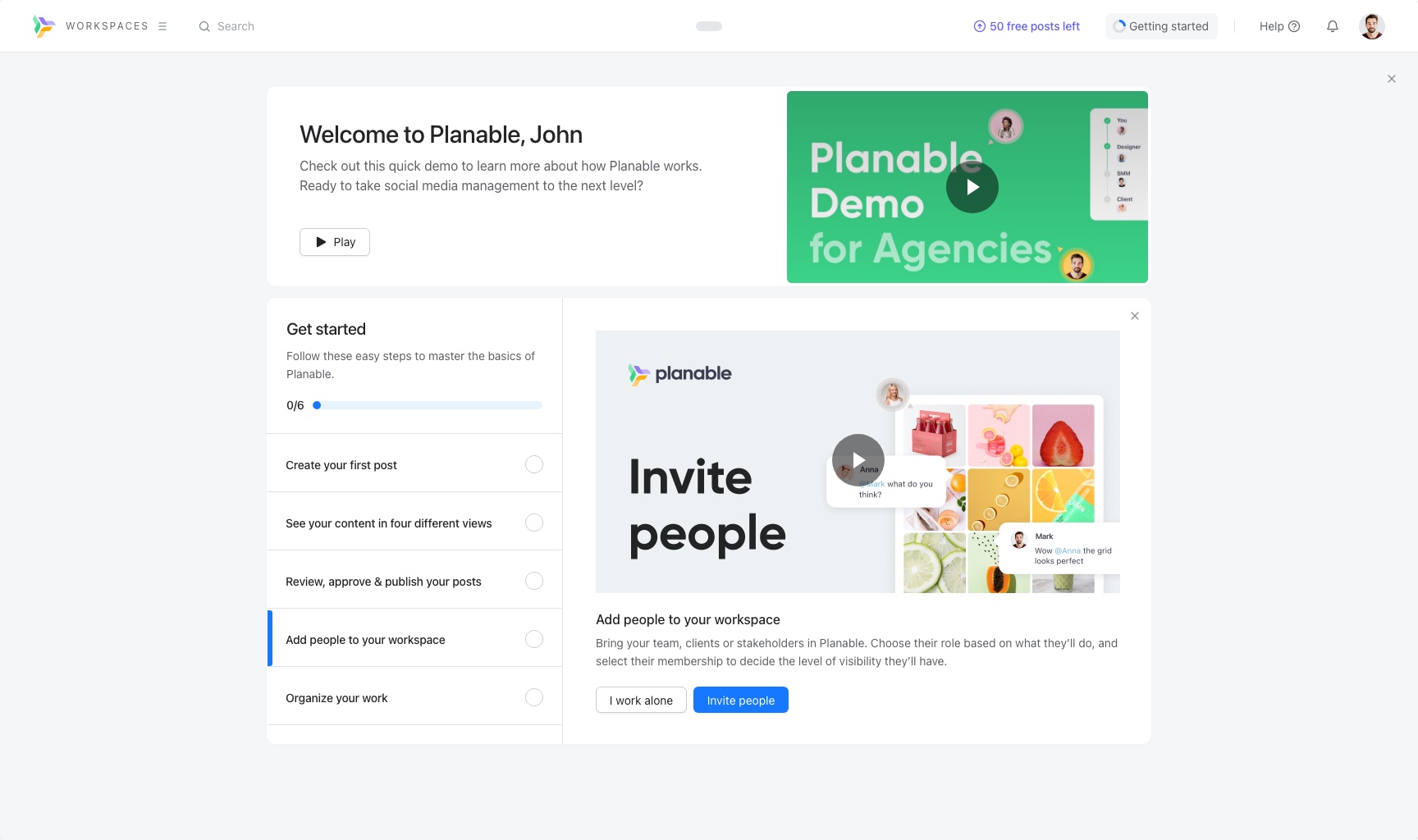
Welcome to Planable, John
Check out this quick demo to learn more about how Planable works.
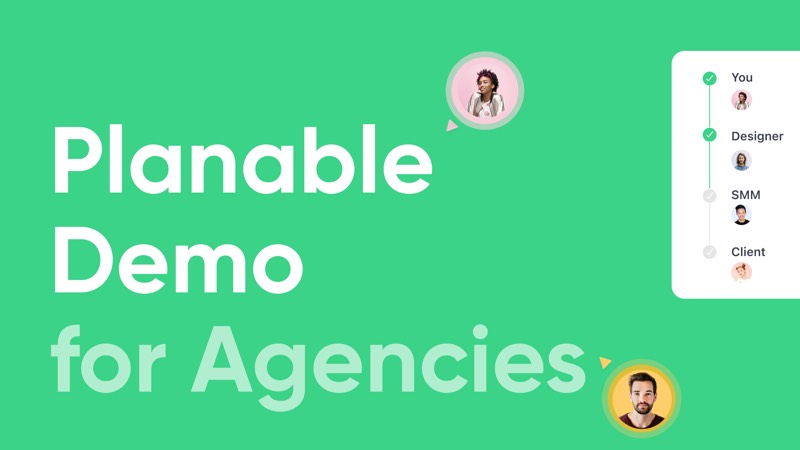
A proper welcome
Before, new users landed in an empty state. Now they see what to do next, plus a video greeting for their user type.
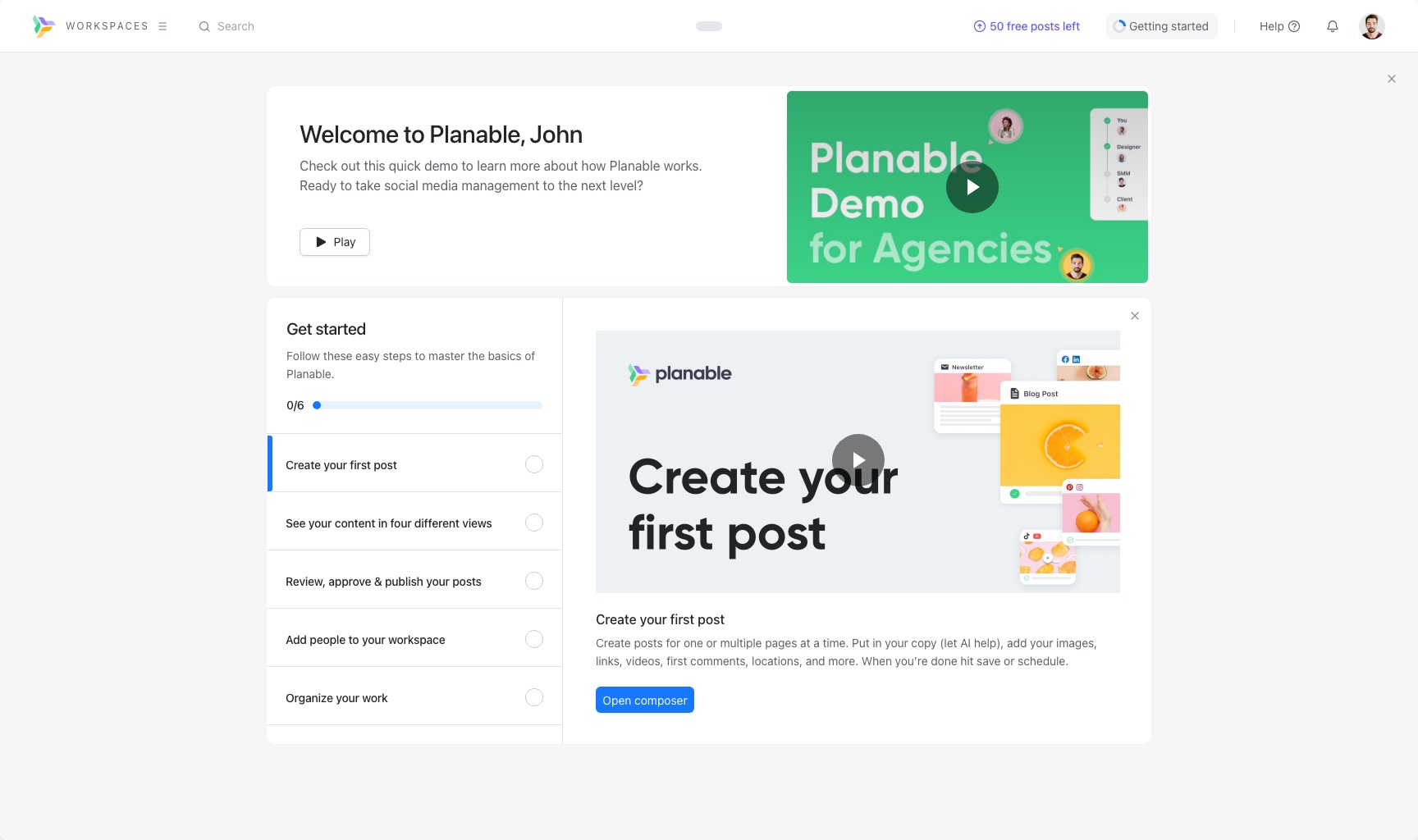
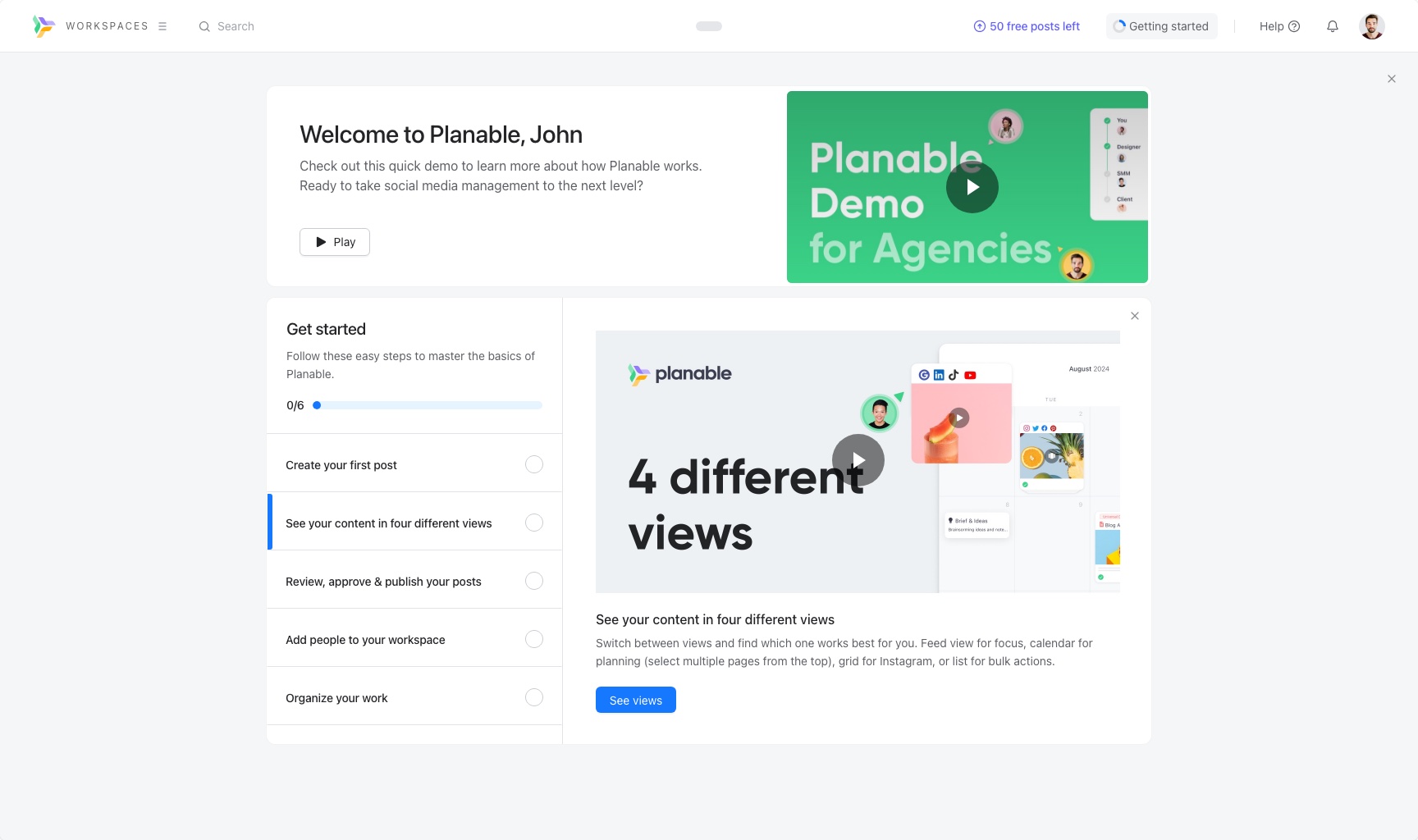
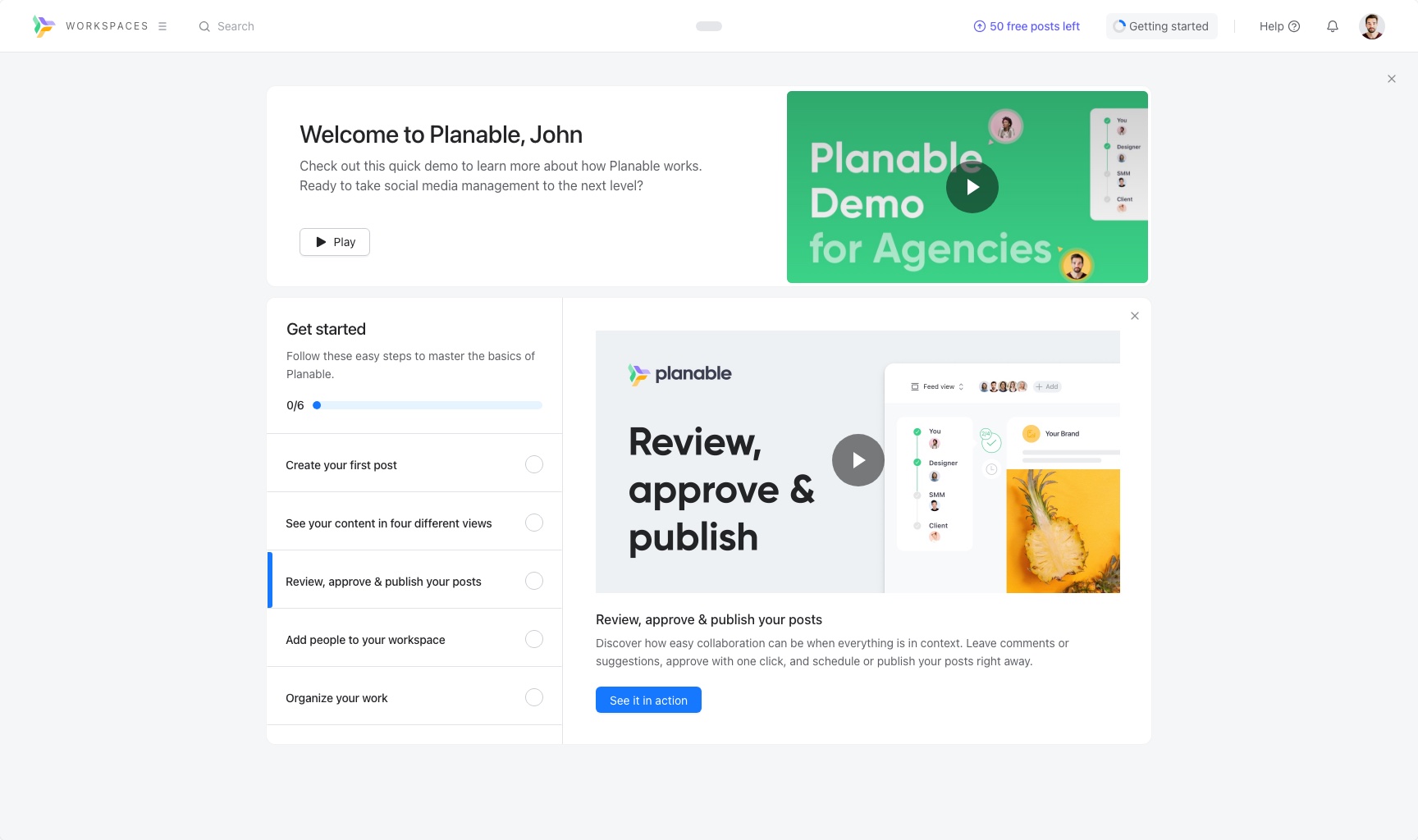
A tour on the user's terms
The old tour was formal, long and felt like a pitch. I cut the steps, used video and made it optional.
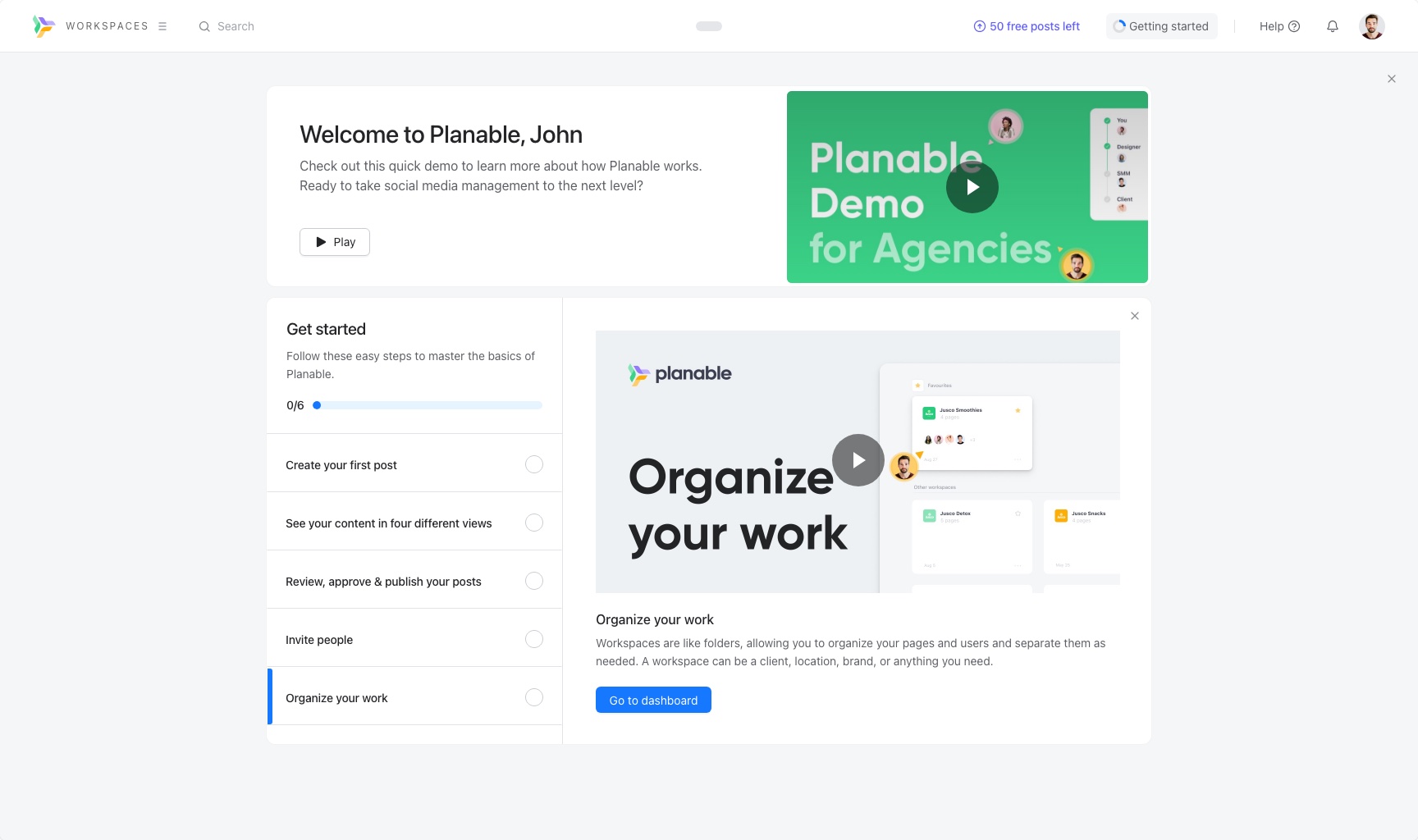
Get started
Follow these easy steps to master the basics of Planable.
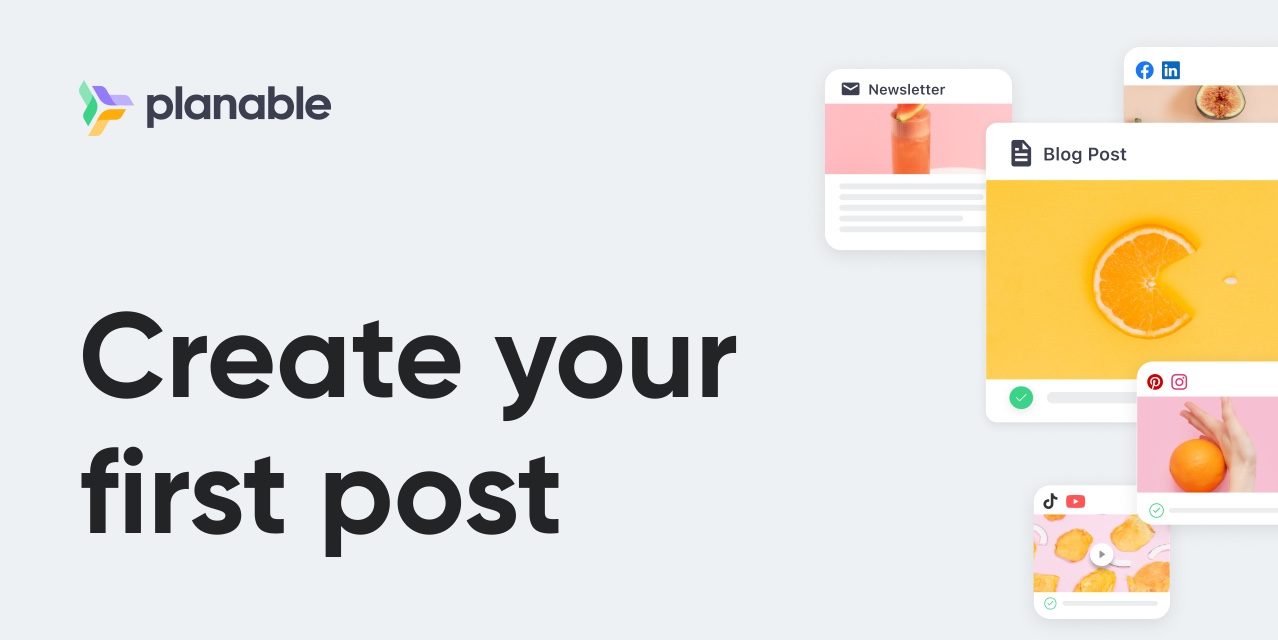
Create posts for one or multiple pages at a time. Put in your copy (let AI help), add your images, links, videos, first comments, locations, and more. When you’re done hit save or schedule.
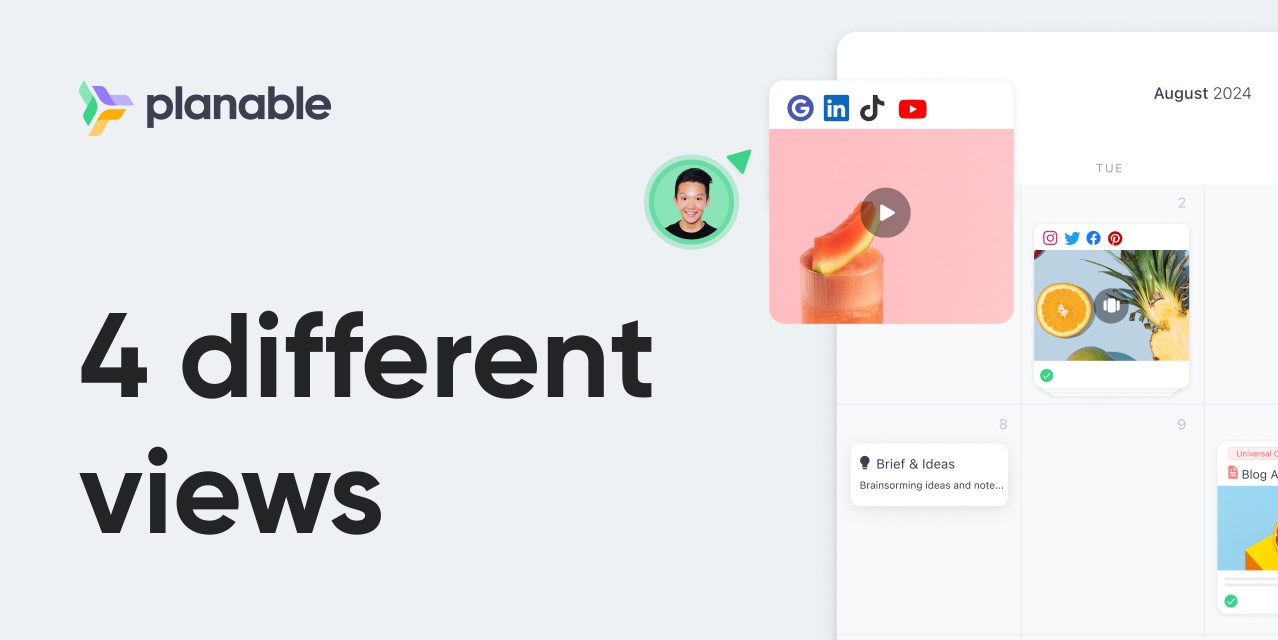
Switch between views and find which one works best for you. Feed view for focus, calendar for planning (select multiple pages from the top), grid for Instagram, or list for bulk actions.
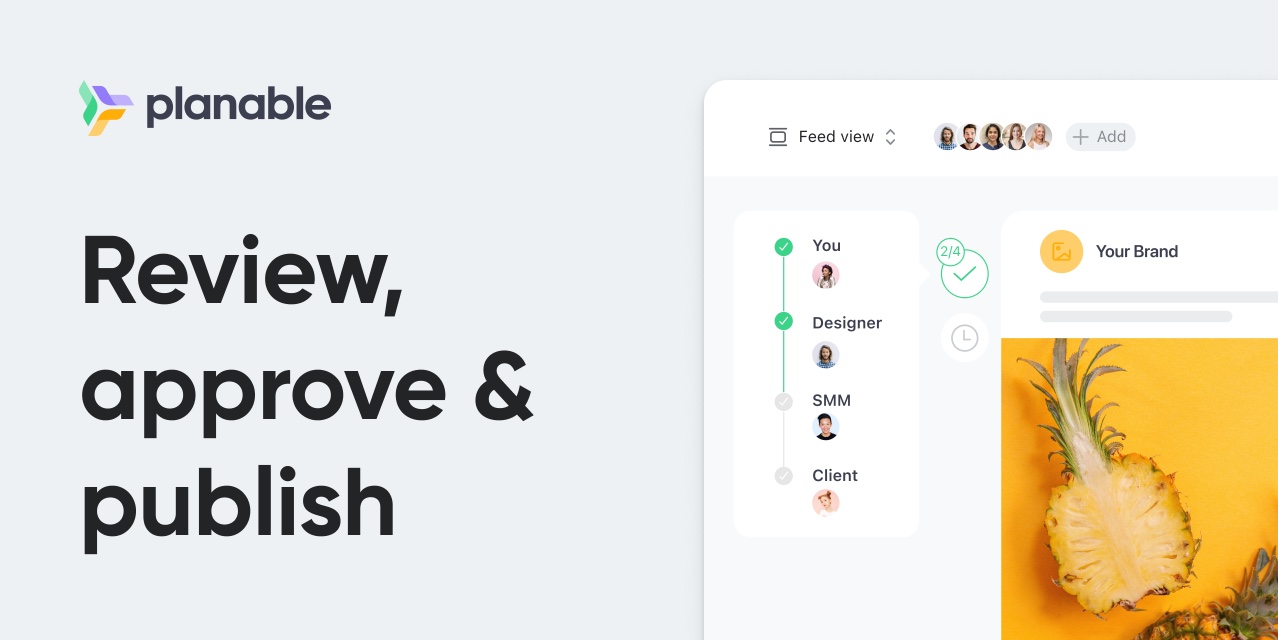
Discover how easy collaboration can be when everything is in context. Leave comments or suggestions, approve with one click, and schedule or publish your posts right away.
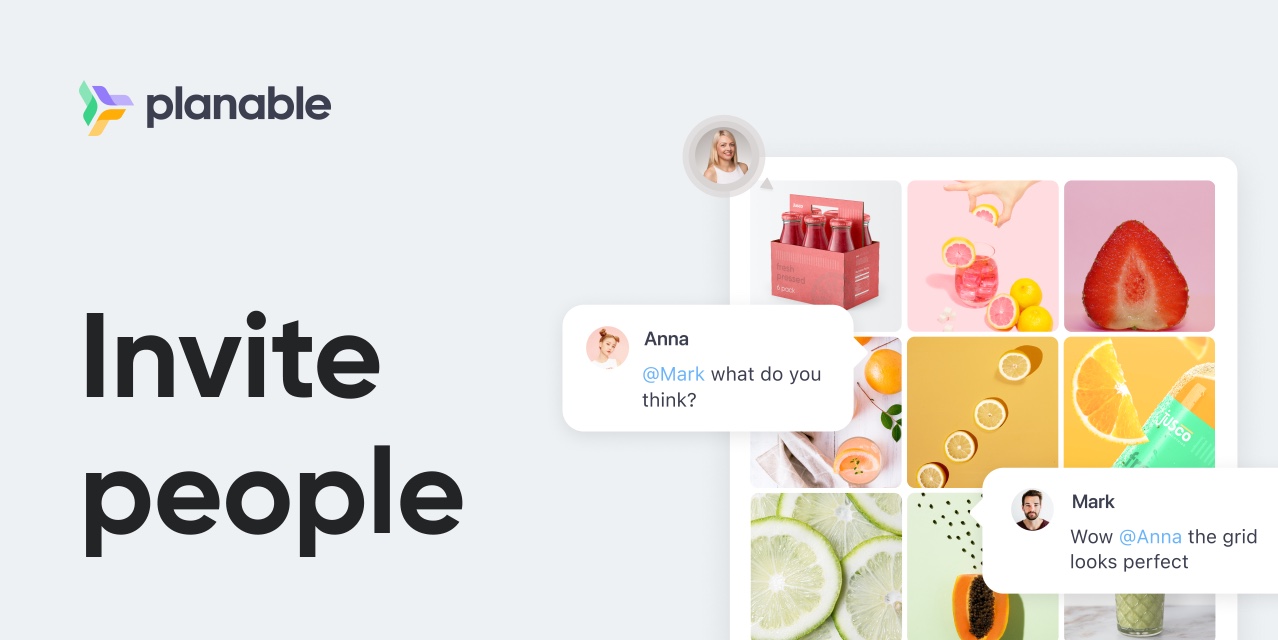
Bring your team, clients or stakeholders in Planable. Choose their role based on what they’ll do, and select their membership to decide the level of visibility they’ll have.
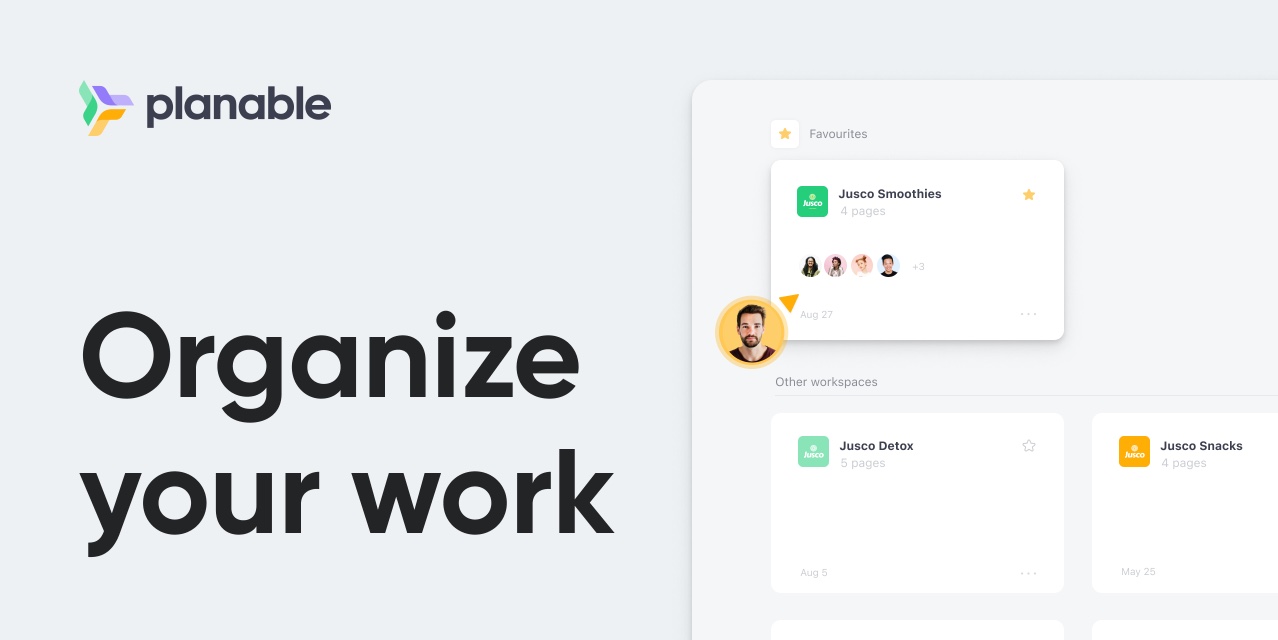
Workspaces are like folders, allowing you to organize your pages and users and separate them as needed. A workspace can be a client, location, brand, or anything you need.
Why it matters
Tap a dot to see why.
Why it matters
This is the most important action in the app, so the checklist starts here.
Why it matters
Your content can be seen in four different views. Organizing content is something many people care about, so this comes right after the first post.
Why it matters
This is the client workflow: review, approve and publish. It is also the moment to invite people.
Why it matters
The next step is adding people, and understanding how user management works in Planable.
Why it matters
The last step is about how to organize your clients inside Planable, with workspaces.
What happened
The results were mixed. Onboarding rate grew by about 10 to 20%, but slower than we expected. Mobile users struggled to connect their pages. People skipped the welcome screen within seconds, and few finished the detailed tour: completion stuck at about 10 to 12%.
What worked
Then I went back to why people come to Planable: planning and scheduling content, fast.
Three steps beat longer checklists
We tested several checklists. The shortest one, with three steps, got better results: about 241% better. So we kept it.
 50 free posts leftGetting startedAdd pagesFilter & sortMedia LibraryCompose
 Welcome to Planable, JohnCheck out this quick demo to learn more about how Planable works. Ready to take social media management to the next level?Close Play Create your first postCreate posts for one or multiple pages at a time. Put in your copy (let AI help), add your images, links, videos, first comments, locations, and more. When you’re done hit save or schedule.Switch between views and find which one works best for you. Feed view for focus, calendar for planning (select multiple pages from the top), grid for Instagram, or list for bulk actions.Open composerSee views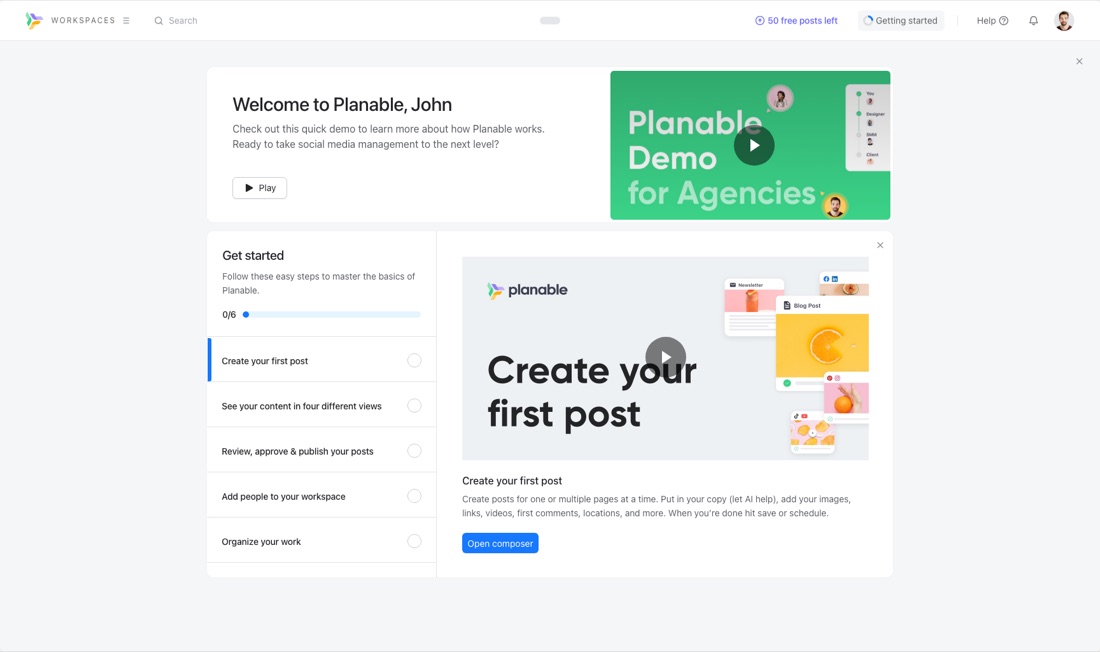
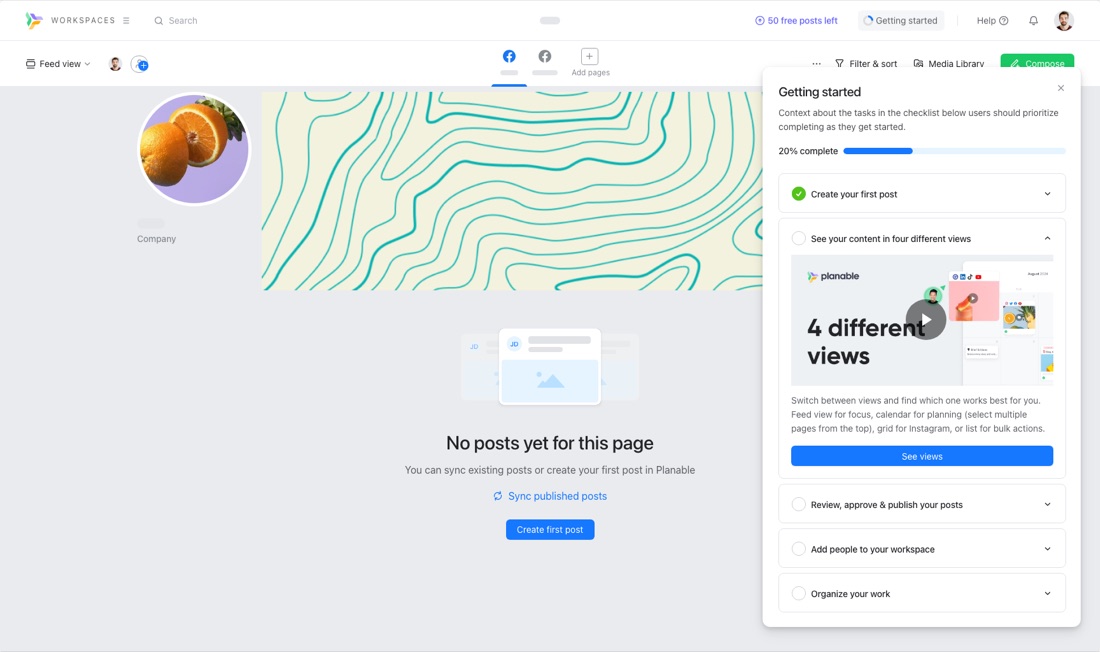
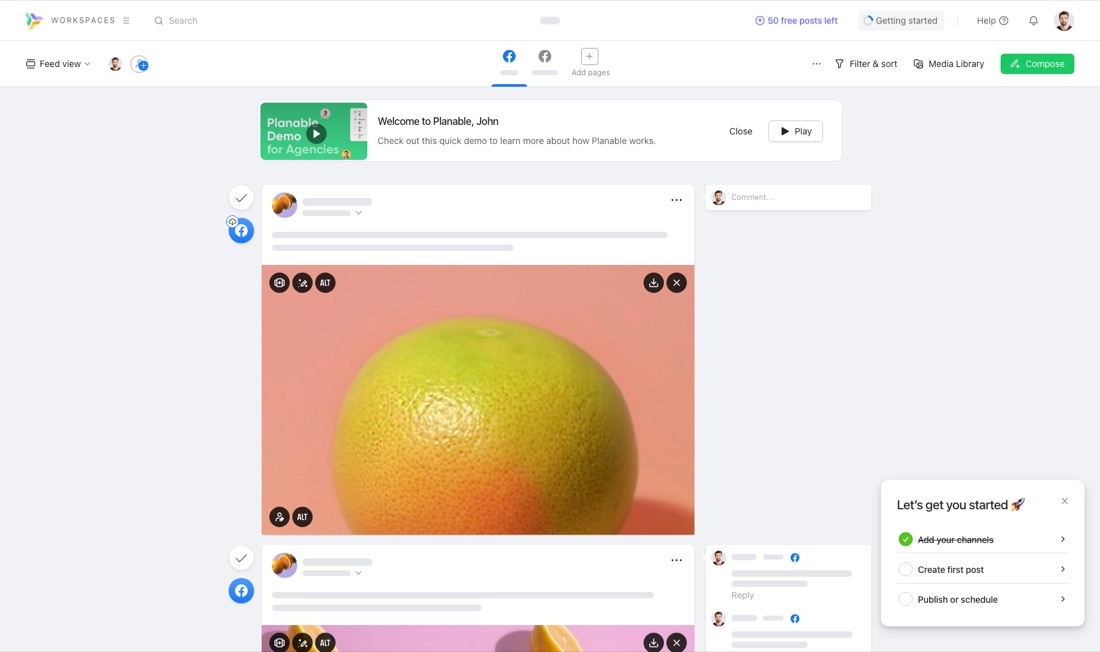
Connecting accounts on mobile
Mobile users struggled to add pages. Social logins usually live in the app, not the browser, so the flow broke on phones. I added a simpler way to connect accounts.
Explore Planable without connecting
 Mockup page
 Filling the empty space
Planable looks best with content in it. So we import the first five posts from one connected channel, usually the first one. When people open the composer, AI suggests a post idea based on those posts. About 20% of the AI-generated content from the first draft was used in the post.
50 free posts leftGetting startedAdd pagesFilter & sortMedia LibraryCompose Behind every perfectly curated social media account is a hardworking Social Media Manager facing daily challenges. From creating engaging content to managing multiple platforms, their job is a never-ending task. From dealing with strict brand guidelines to handling negative comments, a Social Media Manager's day is filled with both creative and strategic hurdles. Despite these challenges, they continue to produce content that connects and resonates with their audience, building a loyal following one post at a time. So, the next time you admire a brand's social media presence, remember the everyday struggles of the Social Media Manager behind it.
Quick wins
- Validation glow. Fields glow blue when a form is valid and red when there is an error. There was no research behind it. It looked good and added a small moment of delight.
- A log out button. Competitive analysis showed a drop-off right after sign-up, probably people who picked the wrong Google account and had no way out. A log out button lets them start over.
- One flow. We started to have growth champions: people from different teams who work on growth. A customer success rep, a product marketer, a PM who is really good at it, and me as the product designer. Each quarter, we did something for growth. It was the start of a team inside the company that helps us succeed.
Results
We didn't hit the original target. We did learn which path leads there, and that made the next decision easier.
- Two-week retentionx2
Two-week retention for newly onboarded users doubled. This is the number the project was for, and the ones around it show where the gain came from.
- Onboarding rate+55.4%
We started with more trials and fewer people getting started. More of them now finish onboarding.
- Time to paid-30%
Time from sign-up to a paid plan went down by 30%.
- Checklist completion+241%
The three-step checklist beat the longer ones we tested, so we kept it.
- AI post idea~20%
About 20% of the AI-generated content from the first draft was used in the post. It gives an empty composer something to start from.
Lessons
Don't try to show users everything you do well. Cover the basics, and let them find the rest themselves.
It's nearly impossible to improve onboarding from inside R&D alone. More people need to be involved and aligned, from drip campaigns to sales demos.
Team Cristian Jigău, Dana Siminițchi, Daniel Pogorevici, Marius Adauge, Veronica Andrei
Thanks for reading. Full work history in my resume. If you'd like to chat, email me or book a 15-min call.
More work
- Approval workflows reworkMore approval requests resolved in the app: +50%.